
Download Screen Mimic – Free Mac Screen Capture Tool for Flash Export
Overview
Screen Mimic is a lightweight Mac utility designed to capture every movement on your desktop and instantly convert the recording into a Flash‑compatible animation. First introduced to the design‑and‑photography community in 2005, the program has amassed more than 13,000 downloads and continues to be a favorite among educators, trainers, and developers who need a quick way to demonstrate software workflows, create tutorial videos, or showcase interactive prototypes. The current version, 2.5.2, was refreshed on April 22 2010 and brings a series of stability tweaks, a clearer status indicator when recording is paused, and a reliable prompt that reminds you to save unfinished sessions before quitting. While the trial version is free and fully functional for short recordings, a paid license removes the watermark and unlocks unlimited export length. Screen Mimic runs exclusively on macOS (including legacy OS X releases) and is offered only in English, making it a focused solution for Mac‑centric users who value speed, simplicity, and a minimal storage footprint.
Key Features & Functionality
- Full‑desktop capture with optional cursor highlighting.
- One‑click export to Flash (SWF) format for easy web embedding.
- Adjustable frame rate (1‑30 fps) to balance file size and smoothness.
- Pause and resume recording without losing timeline continuity.
- Real‑time status bar showing recording duration and memory usage.
- Automatic prompt to save unsaved recordings when exiting.
- Lightweight installer (under 5 MB) and minimal RAM consumption.
- Supports older Mac OS X versions back to 10.4, ensuring broad compatibility.
Why These Features Matter
For creators who need to demonstrate step‑by‑step processes, the ability to highlight the mouse cursor eliminates confusion and directs viewers’ attention precisely where you want it. Adjustable frame rates let you fine‑tune the trade‑off between smooth motion and file size—a critical consideration when publishing on bandwidth‑limited sites. The pause‑and‑resume capability is especially handy during lengthy tutorials; you can stop the capture while you navigate menus or install software, then continue without creating multiple files that must later be stitched together. Moreover, the built‑in status indicator reduces the guesswork that often accompanies screen‑recording tools, giving you instant feedback on how much footage you’ve captured.
Security & Updates
Screen Mimic has a modest update history, with the most recent patch addressing two core issues: a clearer visual cue when the recording is paused and a reliable save‑prompt on quit. Because the software is packaged as a standard Mac application bundle, it does not require elevated permissions or internet connectivity during operation, which enhances security for users working with sensitive on‑screen content. The trial version is free to download and test, and the upgrade to the full license is a one‑time payment, ensuring you won’t face recurring subscription fees.
Installation, Usage & Compatibility
Step‑by‑Step Installation
Getting Screen Mimic up and running is straightforward. Follow these steps:
- Visit the official download page and click the Download Free Trial button.
- Once the DMG file is saved, double‑click it to mount the installer volume.
- Drag the Screen Mimic.app icon into your Applications folder.
- Open the app from Applications; macOS may warn you that the developer is unidentified—choose “Open Anyway” in System Preferences → Security & Privacy.
- The first launch will present a brief tutorial overlay; click “Got It” to proceed to the main interface.
Using the Application
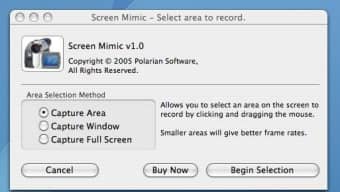
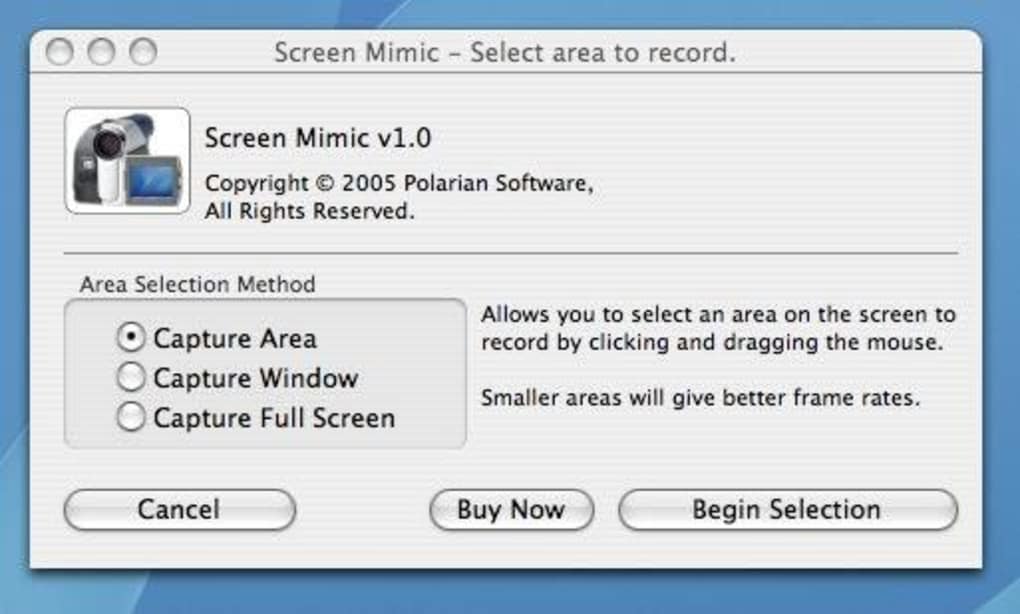
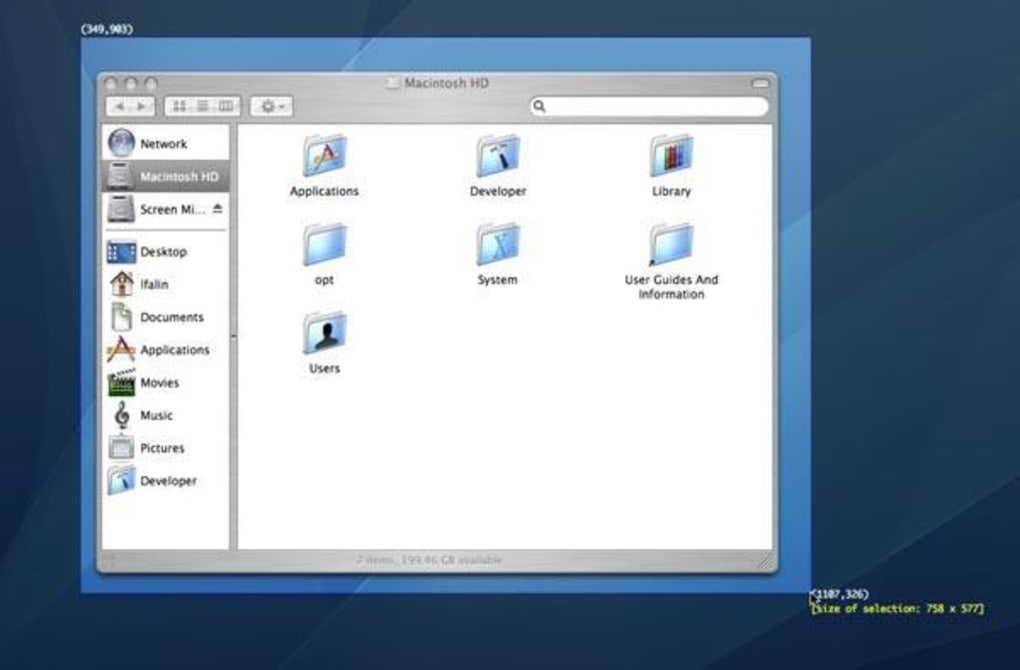
After launch, the main window displays three primary controls: Record, Pause, and Stop. Click Record to begin capturing the entire screen or select a specific region by dragging a rectangle. If you need to emphasize mouse actions, enable Cursor Highlight from the preferences menu.
While recording, the status bar updates in real time, showing elapsed time and memory usage. To edit the captured sequence, click Pause at any moment; you can resume later without creating a new file. When finished, press Stop**, then choose Export → Flash (SWF) to save the animation.
The export dialog allows you to set frame rate, output directory, and whether to embed a watermark (removed in the paid version).
Operating System Support
Screen Mimic is built specifically for macOS. It runs on macOS 10.4 Tiger and later, covering a wide range of legacy hardware still in use for educational labs or older design studios. The app does not have native Windows, Android, or iOS versions, so Mac users looking for cross‑platform capture will need to pair Screen Mimic with a separate solution for other devices. Because the software does not rely on external libraries, it remains compatible with both Intel‑based Macs and Apple Silicon (M1/M2) through Rosetta 2 translation, although performance is best on native Intel builds.
Pros, Cons & Frequently Asked Questions
Pros
- Very small download size and low system resource usage.
- Instant Flash export eliminates the need for third‑party converters.
- Pause‑and‑resume feature streamlines long tutorial creation.
- Clear status indicators improve user confidence during recording.
- One‑time purchase removes watermarks and unlocks unlimited recording time.
Cons
- Limited to macOS; no Windows or mobile versions are available.
- Export format is restricted to Flash (SWF), which is less common today.
- Interface feels dated compared to modern screen‑recording suites.
- No built‑in video editor for trimming or adding captions.
- Trial version adds a small watermark to exported files.
FAQ
Can Screen Mimic record audio?
No. Screen Mimic focuses solely on visual capture and does not include an audio track. If you need narration, you’ll have to add it later using a video‑editing tool.
Is the exported Flash file compatible with modern browsers?
Flash content requires the Adobe Flash Player plug‑in, which most browsers have discontinued. However, the SWF can still be used in legacy systems, embedded in e‑learning platforms, or converted to MP4 with external converters.
How much storage does a typical recording consume?
File size depends on resolution, frame rate, and duration. At 15 fps with a 1280 × 720 capture, a one‑minute recording usually ranges between 5‑7 MB.
Can I capture only a specific window instead of the whole screen?
Yes. When you click the Record button, you can drag to define a custom region or click the window‑selection icon to target a single application window.
Is there a way to update Screen Mimic automatically?
The program does not feature built‑in auto‑updates. Users must manually download newer releases from the official website when they become available.
Review Summary
Screen Mimic remains a solid, no‑frills screen‑capture solution for macOS users who need quick Flash output. Its lightweight design and pause‑resume workflow shine for tutorial creators, though the lack of audio support and reliance on the outdated SWF format limit its appeal for modern multimedia projects. Overall, it earns a respectable rating for its niche focus and reliability.
Conclusion & Call to Action
If you’re a Mac‑centric educator, trainer, or developer looking for a fast, low‑overhead way to capture screen activity and export it directly to Flash, Screen Mimic still delivers on its promises. The trial version lets you evaluate the core functionality without commitment, and the one‑time purchase eliminates watermarks while granting unlimited recording time. Keep in mind the constraints: no audio, Flash‑only output, and a dated interface. For users who need modern video formats or cross‑platform support, pairing Screen Mimic with a secondary converter or choosing an alternative tool may be wiser. Nevertheless, for niche scenarios—such as legacy e‑learning platforms that still require SWF files—Screen Mimic offers a dependable, secure, and affordable solution.
Ready to try it? Download the free trial of Screen Mimic now and start turning your desktop actions into interactive Flash animations today.







